
Import a spreadsheet with the import agent
The import agent is an AI agent that reads a vendor spreadsheet and pulls out the file name and script line for each audio file. It handles Excel workbooks and irregular CSVs with extra sheets, header rows, notes, and unusual column names. You review a preview before anything is added to your Session, and you can correct the agent at any point.
Use the import agent when your file isn’t already in the VoiceQC format. If you have a CSV that matches the Script CSV format, upload it directly. A CSV in the VoiceQC format never uses an import, so it’s always free.
How do I import a spreadsheet when creating a Session?
Section titled “How do I import a spreadsheet when creating a Session?”On the Create a session page, drop your spreadsheet on the Scripts card and choose Map it for me. This is the same flow as the Quickstart, with one extra choice when your file needs mapping.
-
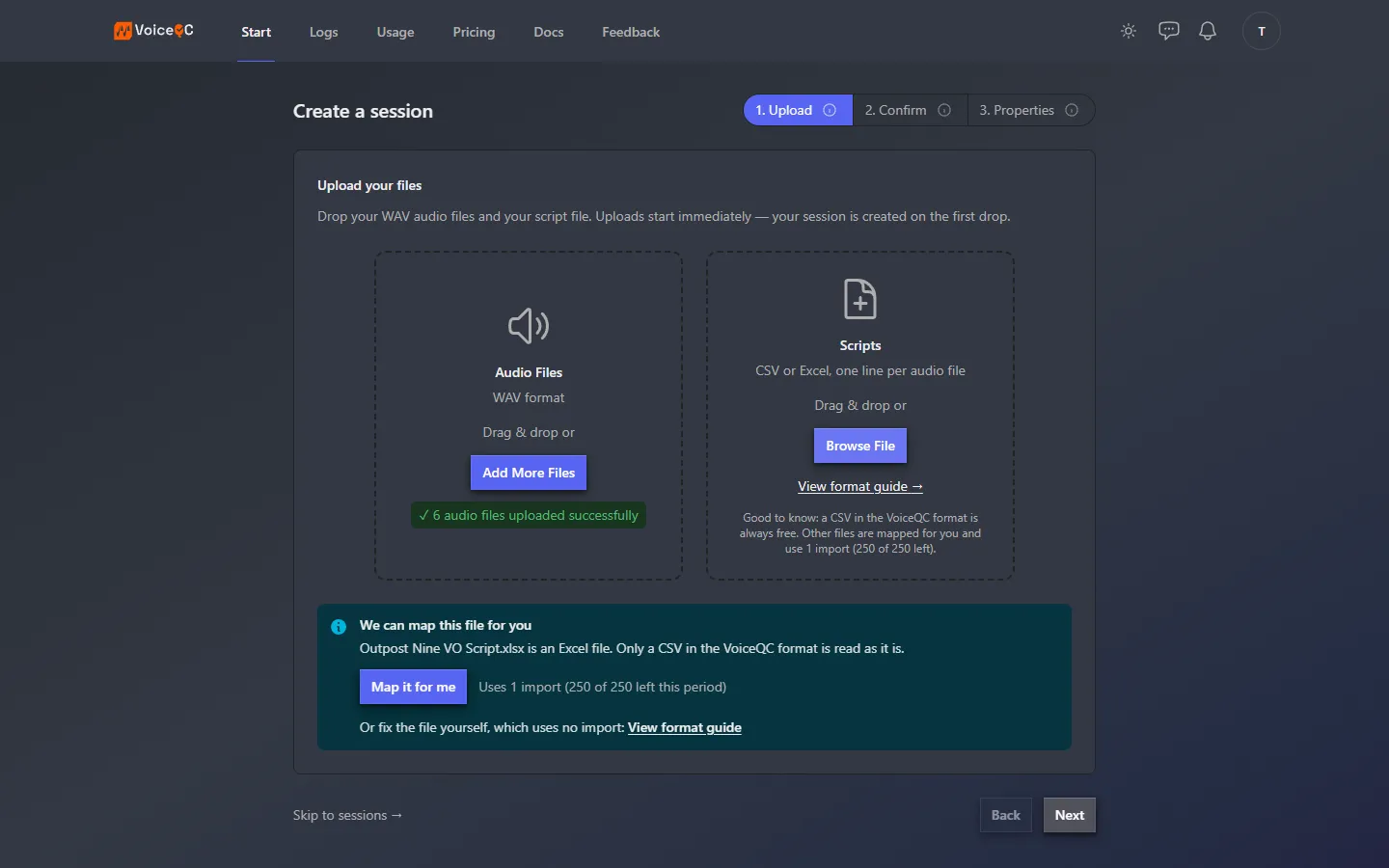
On the Create a session page, drag your spreadsheet onto the Scripts card. The card accepts “CSV or Excel, one line per audio file”.
-
If the file is a CSV in the VoiceQC format, it loads as a Script directly. No import is used, and you can skip the rest of these steps.
-
For any other file, the card shows We can map this file for you. Below it, the card shows what this costs, for example “Uses 1 import (247 of 250 left this period)”.
-
Click Map it for me. If you’d rather not use an import, fix the file yourself instead. Click View format guide to see the format.
-
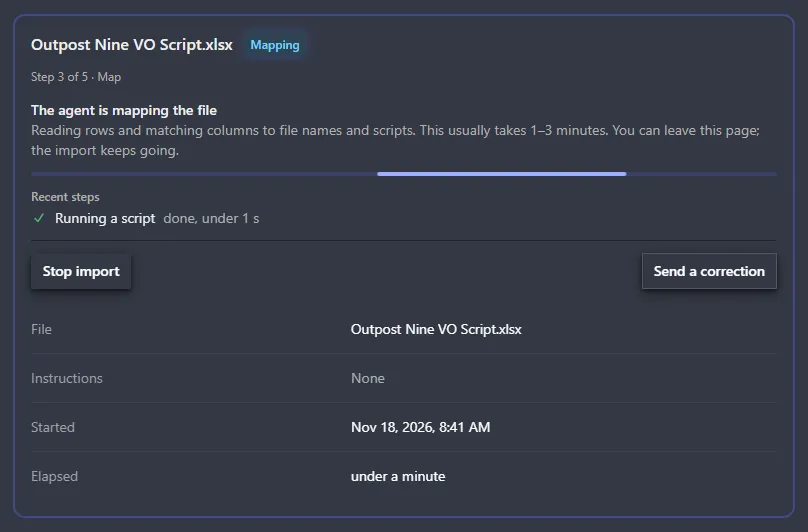
Watch the agent work below the cards. Answer any questions it asks. Next stays disabled until the agent finishes.
-
When the agent finishes, the card shows a summary such as “240 lines from Prompts.xlsx · used 1 import”. Click Next to continue creating the Session.
How do I import a spreadsheet into an existing Session?
Section titled “How do I import a spreadsheet into an existing Session?”Open the Session and use the Import any spreadsheet card. The card reads “AI maps the file name and script columns. You review first.”
-
Open the Session page and find the Import any spreadsheet card.
-
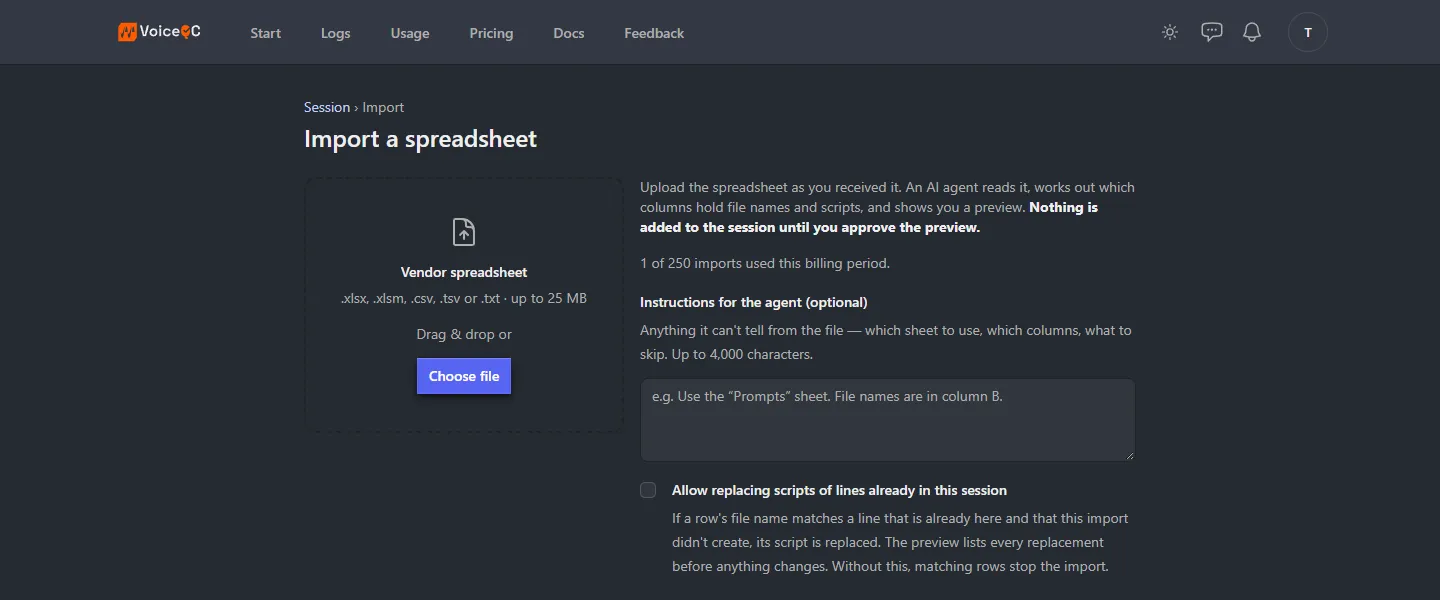
Click Choose a spreadsheet. The Import a spreadsheet page opens.
-
Under Vendor spreadsheet, pick your file.
-
Optional: under Instructions for the agent (optional), tell the agent which sheet or columns to use, or what to skip. For example: “Use the Final VO sheet. Skip rows marked CUT.”
-
Optional: select Allow replacing scripts of lines already in this session if the spreadsheet should update Script lines the Session already has.
-
Click Upload and start.
A stepper at the top of the page shows progress: Upload › Read file › Map › Review › Add to session. When the agent finishes mapping, it shows a preview for you to review.
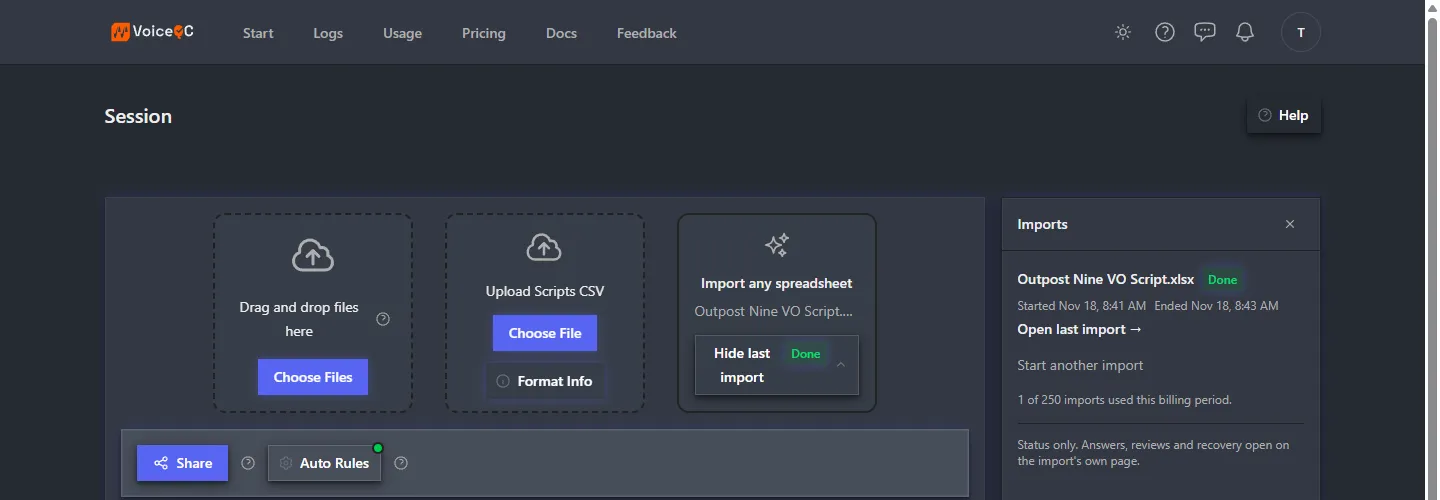
Back on the Session page, the card shows the import’s status. A Needs you badge appears when the agent is waiting for an answer or a review. Click Show last import to open the Imports panel, which shows the latest import and how many imports you’ve used this billing period. Click Open last import → to return to it, or Start another import to begin a new one.
Review the preview
Section titled “Review the preview”The preview shows exactly what the agent plans to add. Nothing reaches your Session until you approve it. Check each part against your spreadsheet:
- What the agent applied — the sheet and the columns it used for file names and scripts.
- What the agent did and assumed — the agent’s decisions, in plain language, such as which rows it treated as titles or notes and which sheets it skipped.
- Verified against the file — how many file names and scripts match their source cells exactly, and which rows they came from.
- Columns used — each column of the sheet, marked as the file name, the script, or not used.
- The lines table — one row per line, with File name, Script, Change, and From (the sheet and cell the value came from). The Change column says what happens to each line:
- New — the line is added to the Session.
- Replaces — the line replaces a script the Session already has for that file name.
- Clears script — the line removes the existing script for that file name.
- Missing value — the file name or script line is empty.
- Lines left out — rows the agent skipped, such as notes or rows without a file name. This appears only when rows were skipped.
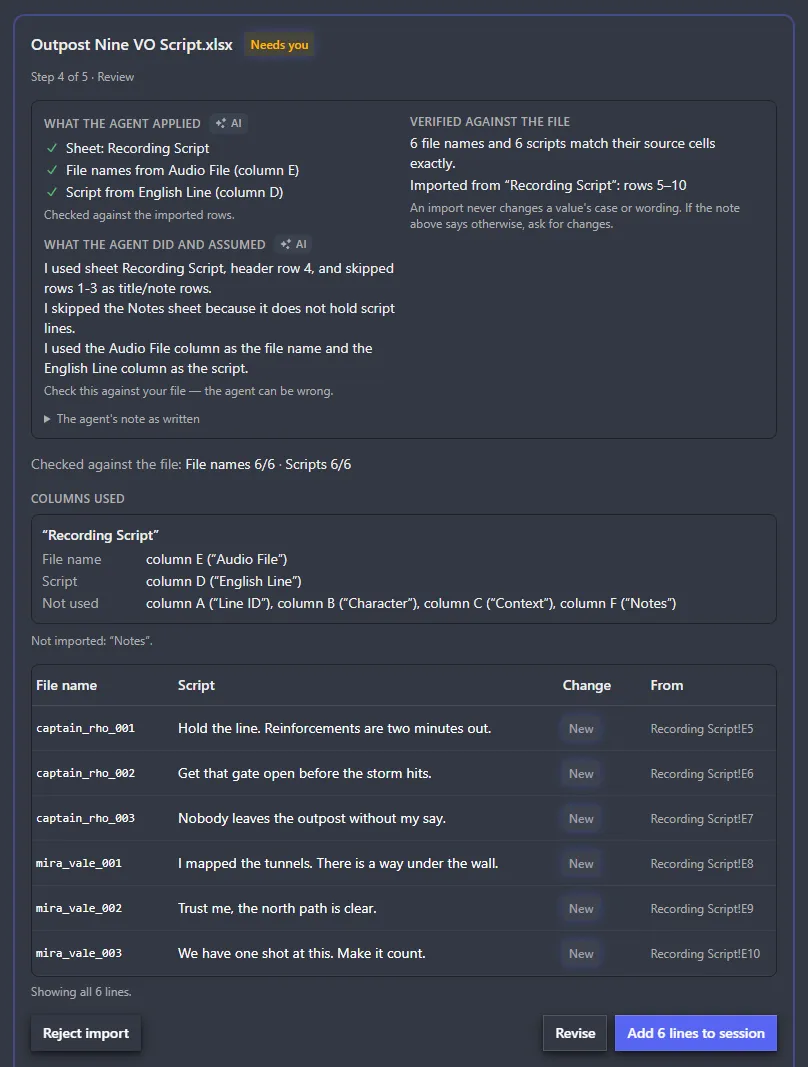
When the preview looks right, click Add N lines to session (N is the number of lines). The lines are added straight away.
How do I steer the agent?
Section titled “How do I steer the agent?”You steer the agent with plain-language instructions, corrections, and answers. There are five points where you can step in:
- Before it starts. Add guidance in Instructions for the agent (optional). Say which sheet or columns to use, or what to skip. Instructions can be up to 4,000 characters.
- While it runs. Click Send a correction to redirect it without starting over, for example “The file names are in column D, not column A”. Use this when you already know the agent is on the wrong track; otherwise wait for the preview.
- When it asks a question. The agent pauses and shows The agent asks. Pick one of the suggested answers or type your own reply, then click Send answer. It can ask up to 5 questions at once.
- At the preview. Click Revise. Under What should the agent change?, describe the fix, then click Send feedback. The agent produces a new preview. Feedback can be up to 4,000 characters.
- To end it. Click Stop import while it’s running, or Reject import at the preview. Nothing is added to your Session.
Every message you send and every reply from the agent appears in Conversation with the agent on the import’s page.
What if the import has problems?
Section titled “What if the import has problems?”Most problems can be fixed by giving the agent more guidance. Find your symptom below.
The agent picked the wrong column or sheet
Section titled “The agent picked the wrong column or sheet”Click Revise and name the right one, for example “Use the Script column on the Session 2 sheet, not Notes”. If the agent is still running, click Send a correction instead. For your next import, put the sheet and column names in Instructions for the agent (optional) up front.
Lines were left out
Section titled “Lines were left out”Open Lines left out in the preview to see what was skipped. If the agent skipped rows it shouldn’t have, click Revise and explain which rows to keep.
After an import that finished with some lines left out, you have two options. Click Download the lines left out (CSV) to fix them yourself, or click Retry the rest to have the agent try them again.
The agent asks about replacing scripts or repeated file names
Section titled “The agent asks about replacing scripts or repeated file names”These are fixed-choice questions. The agent asks them when your spreadsheet clashes with the Session or with itself:
- Rows would replace existing scripts. Choose Replace their scripts, Leave those rows out and import the rest, or Cancel the import.
- A file name appears more than once with different scripts. Choose Keep the first row of each, Keep the last row of each, or Cancel the import.
To allow replacements without being asked, select Allow replacing scripts of lines already in this session before you click Upload and start.
The import stopped or failed
Section titled “The import stopped or failed”An import can end with a message that the agent “reached its processing limits” or “could not produce an output”. This usually means the spreadsheet is very large or hard to read. Start another import. Use Instructions for the agent (optional) to point at the exact sheet and columns, or split the workbook into smaller files. If the failure was on VoiceQC’s side and no lines were added, the import is given back. See Spreadsheet import limits for file limits and what each failure message means.
The wrong lines were added to my Session
Section titled “The wrong lines were added to my Session”Click Undo this import on the import’s page. Undo is available for 48 hours after the import. It removes only the lines this import created that nobody has changed since. Lines someone has edited stay, and so do scripts the import replaced or filled in; fix those by hand. Undo doesn’t give the import back.
I’m out of imports
Section titled “I’m out of imports”When you’ve used all your imports for the Usage period, the Scripts card shows This file needs mapping. Click Get more imports or Review your plan to see your options. Each Plan includes a set number of imports per Usage period:
- Free — 100 imports. When they’re used up, you can’t start another import until the next Usage period.
- Starter — 250 imports included. Each import beyond that is billed as overage at $0.25.
- Enterprise — no import limit.
See Plans and limits.
Each import you start counts once. You can always fix the file yourself to match the Script CSV format, which uses no import.
I don’t see the Import any spreadsheet card
Section titled “I don’t see the Import any spreadsheet card”The card only appears if you have manage access. Ask someone on your account who has manage access to run the import for you, or to give you access.
I have feedback about the agent itself
Section titled “I have feedback about the agent itself”To tell us the agent got something wrong in a way Revise couldn’t fix, or to suggest an improvement, send it through the feedback form. Include the spreadsheet name, what the agent did, and what you expected.
Is my spreadsheet sent to an AI?
Section titled “Is my spreadsheet sent to an AI?”Yes. An AI model reads your spreadsheet to map it. VoiceQC keeps the uploaded file for 30 days after the import ends, for quality checks. Deleting your organization removes it.
See also
Section titled “See also”- Spreadsheet import limits — file types, sizes, time windows, and failure messages.
- Script CSV format — the format that skips the import agent.
- Upload audio files — get WAV files into a Session.
- Quickstart — the end-to-end first-time flow.
- Spreadsheet import in the Glossary — the term defined.